Luminasiti CRM Guide
A complete step-by-step walkthrough of the client portal.
1. Account Activation
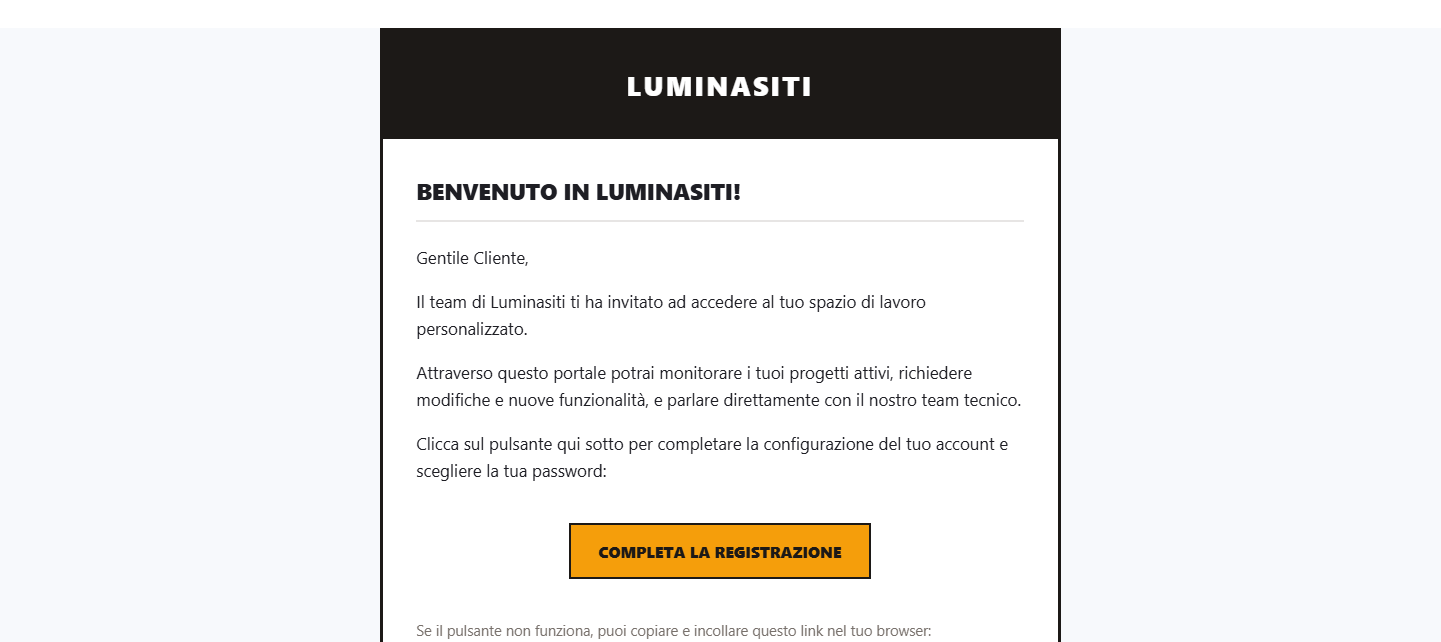
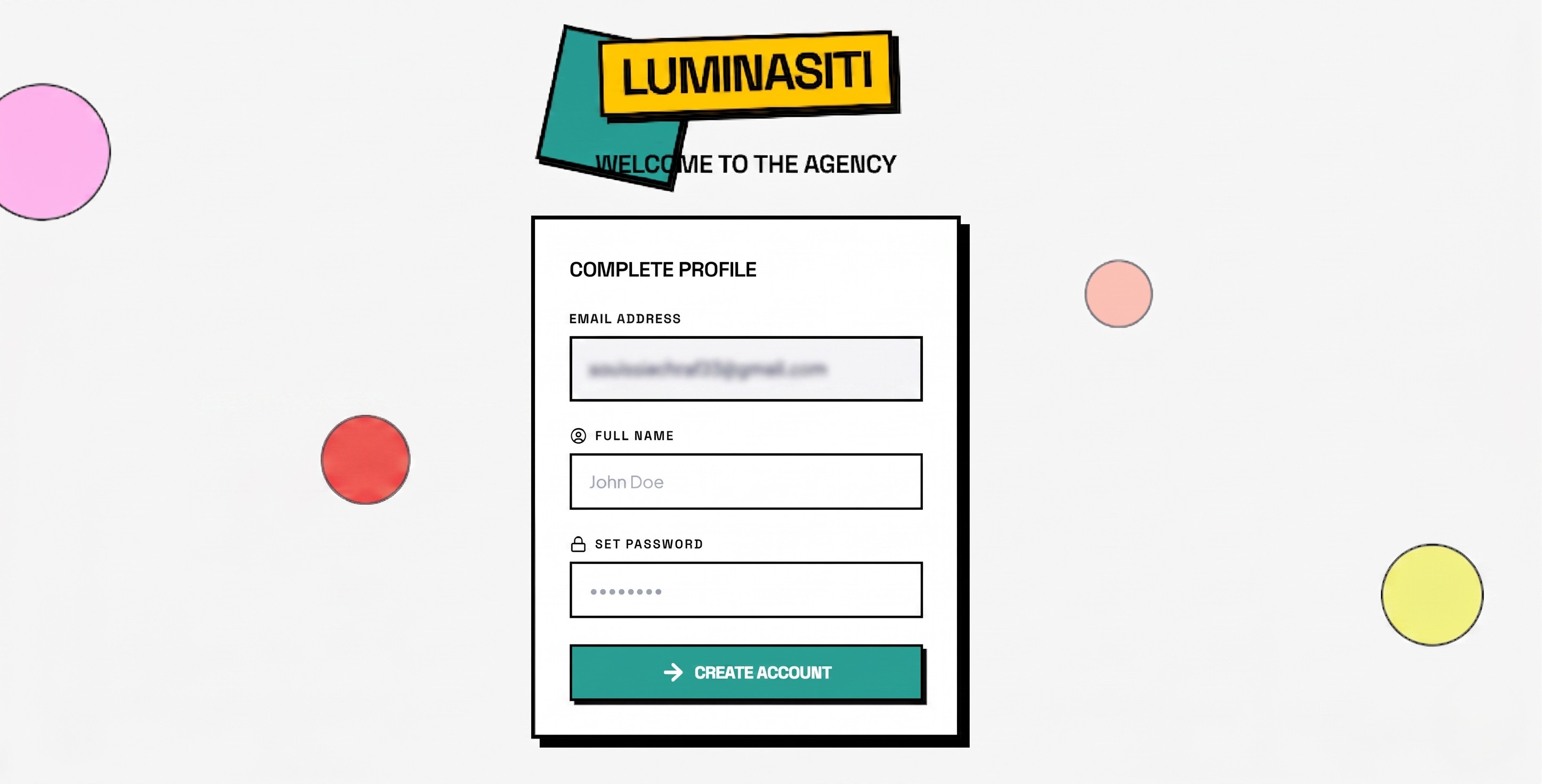
When we set up your portal, you will receive an invitation email. Click the 'Complete Account Setup' button inside, choose your secure password, and you will be automatically logged in.
2. Dashboard Overview
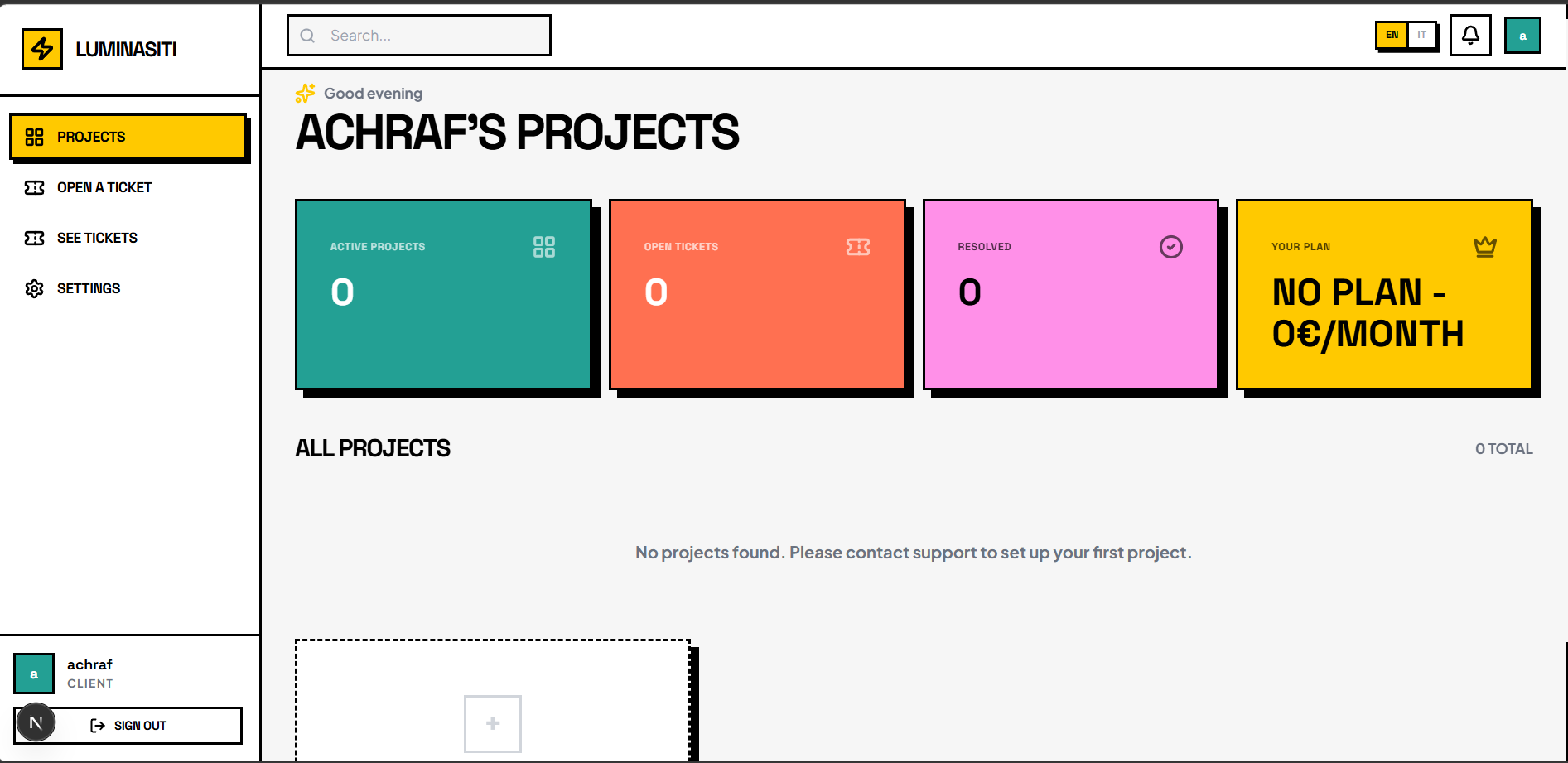
Your dashboard displays your active projects, open requests, and resolved tickets. You can see your plan in there.
3. Creating a Request
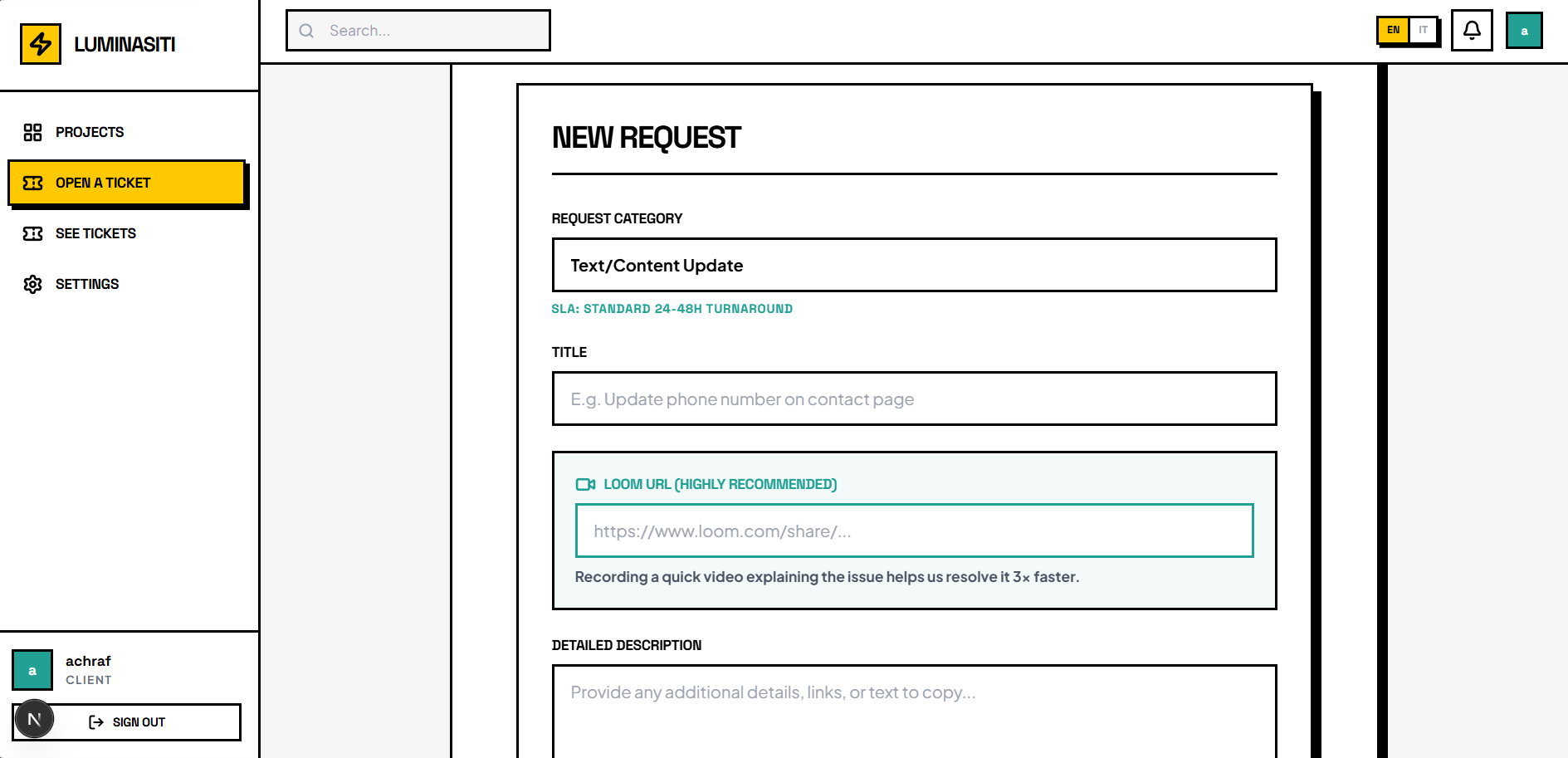
Need changes? Click 'Open a Ticket', select the category (Design, Bug, or Feature), and describe your request. You can also paste a Loom link to attach a screen recording instantly.
4. Discussion Feed
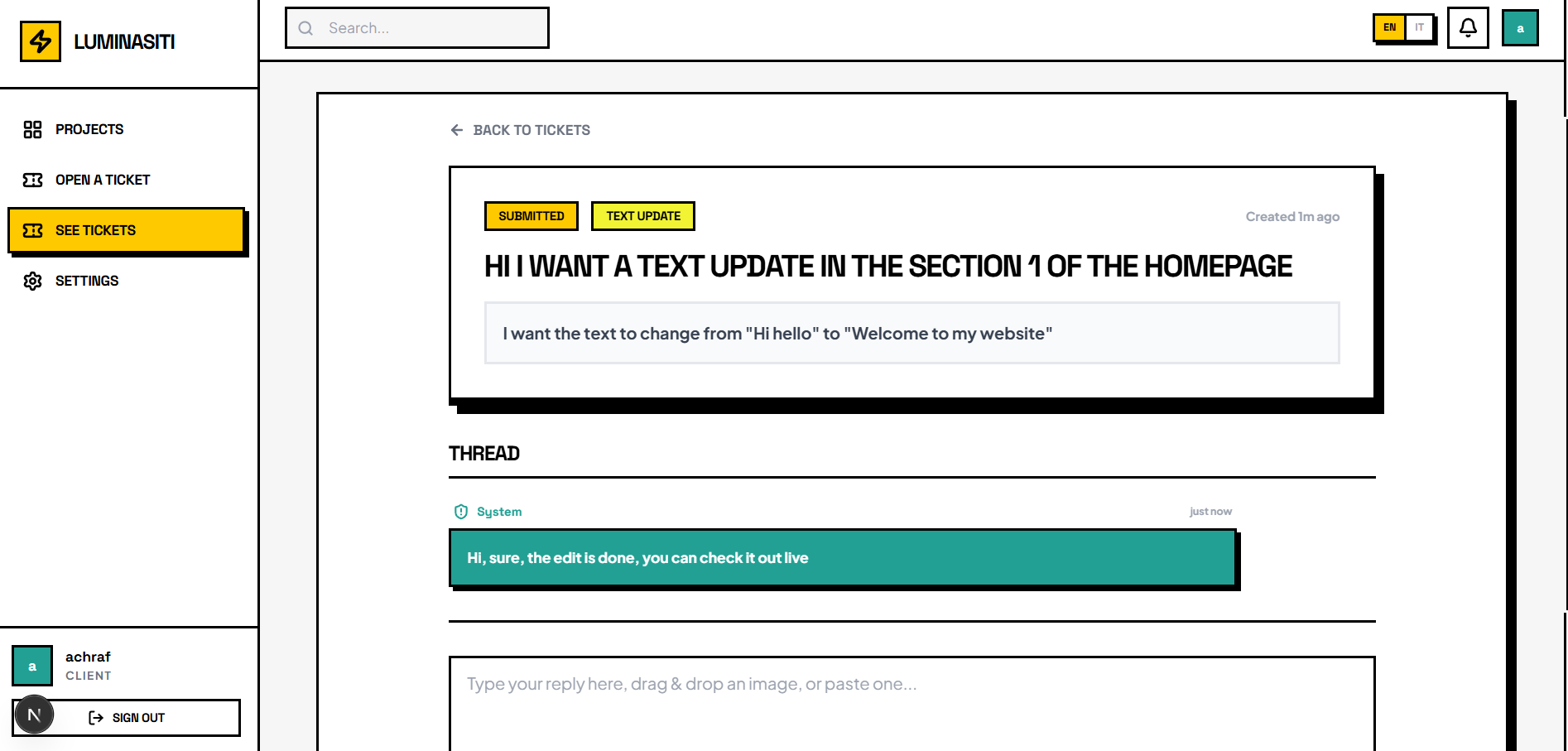
Each ticket has an interactive discussion feed. You can chat directly with our engineering team, receive progress updates, and see direct support replies in real-time.
5. Review & Resolution
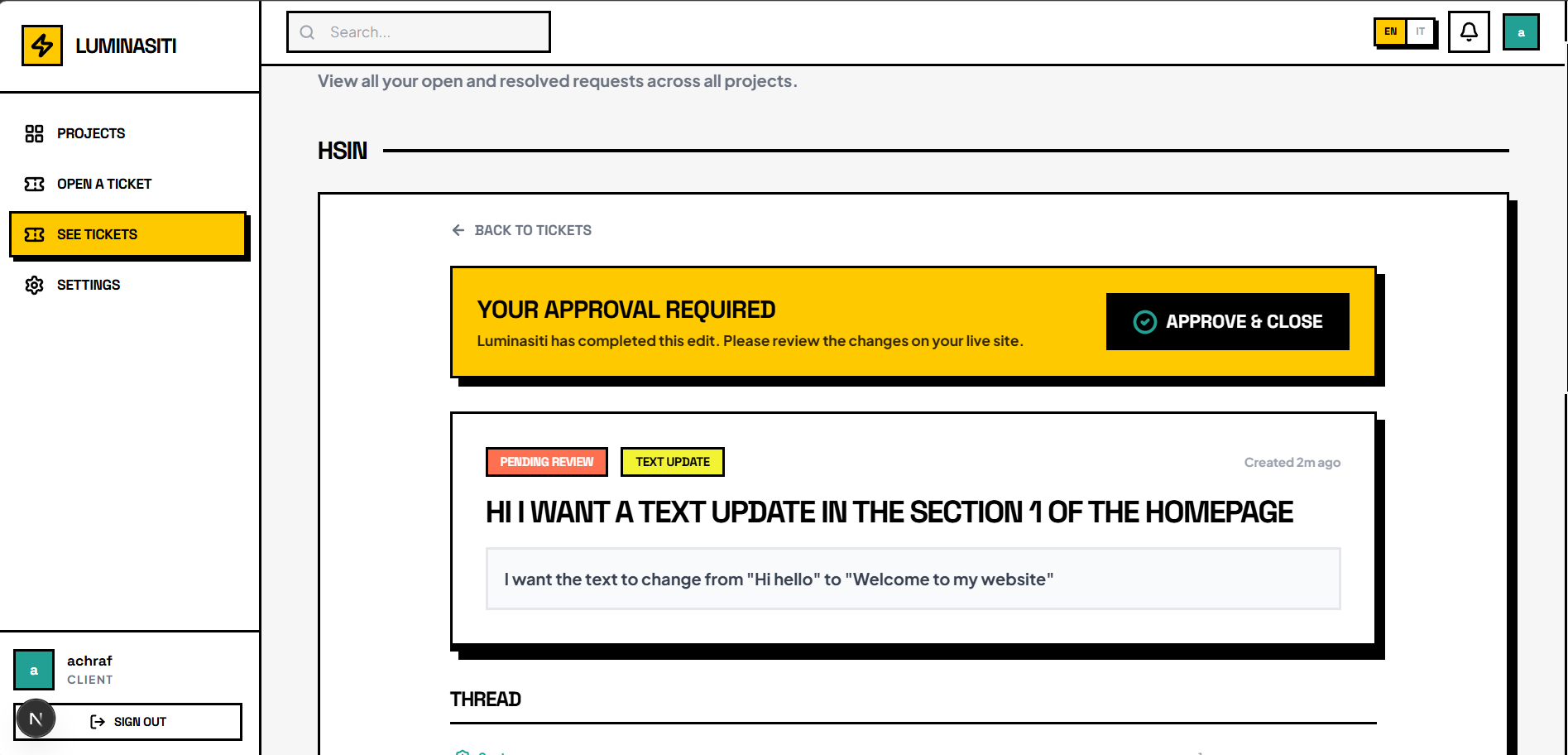
Once our team completes the task and deploys it live, the ticket enters 'Pending Review'. Review the changes on your live site, and click 'Approve & Close' to resolve it.
Doubts about website edits?
Here are answers to the most common questions regarding how edits are requested, processed, and finalized.
Simply log in to your CRM workspace, click on 'Open a Ticket' from the dashboard, select the category (Design, Bug, or Feature), choose your project, and describe the requested edit. You can write details, attach screenshots, or paste a Loom screen recording.
Most edits are completed and deployed within 24 to 48 business hours. For complex features or larger layout changes, we will provide a custom estimated delivery timeline directly inside the ticket's discussion thread.
Yes! You can open multiple tickets for different tasks. We will process them sequentially or concurrently according to your active monthly subscription plan limit.
We highly recommend using Loom or any free screen recorder. Record a short video showing your screen and explaining what you want, then paste the Loom link directly into the ticket description or the chat thread. It's incredibly fast and guarantees we get it right on the first try!
When we complete an edit, the ticket status changes to 'Pending Review'. You can test and inspect the changes directly on your live website. If everything looks perfect, click 'Approve & Close'. If it needs adjustments, just reply in the ticket chat and we'll refine it!
When opening a ticket, you can set the category as a 'Bug' or mark it in the description. Our team prioritizes critical issues (like site down or broken checkouts) to restore functionality immediately.